Keep answers unreadable on a second camera
A second camera has one job to defeat: it must not be able to read your answers. Here are two setups, the real shortcuts, and how to check each step.
- Option A · one computer
Answers stay on your screen, faint enough that you can read them and the camera can't.
- Option B · phone or tablet
The computer shows nothing; answers appear only on a screen outside the camera's view.
- Either way, film 10 seconds first
The recording is the only test that counts.
A second camera is a camera, not screen sharing
CalmRound keeps its windows out of screen sharing, recordings and screenshots. A second camera is a real lens pointed at your monitor, so no software can hide anything from it.
- It films the physical screen. Whatever your monitor shows, the lens sees.
- Stealth doesn't help here. It only affects captured screen images and shared screens. Don't count on it against a second camera.
- The replay is the only judge. Go by what the second camera records, not by what you see on your monitor.
Stealth is not second-camera protection. Against a physical camera you have two tools: show the answers somewhere else, or lower their contrast.
Before anything else: a 10-second test recording
Whichever setup you pick, record a short clip from the angle the interviewer asks for. It shows lens, distance and exposure problems before they matter.
- Place the second camera as the interviewer asks and record 10 seconds that include your face, hands, keyboard and the interview page.
- Play it back: your face, hands and the interview page should be clear, and the answer text unreadable.
- Readable? Shrink the answer window, change the angle, lower the screen brightness, or switch to the other setup. Don't judge by eye on your monitor.
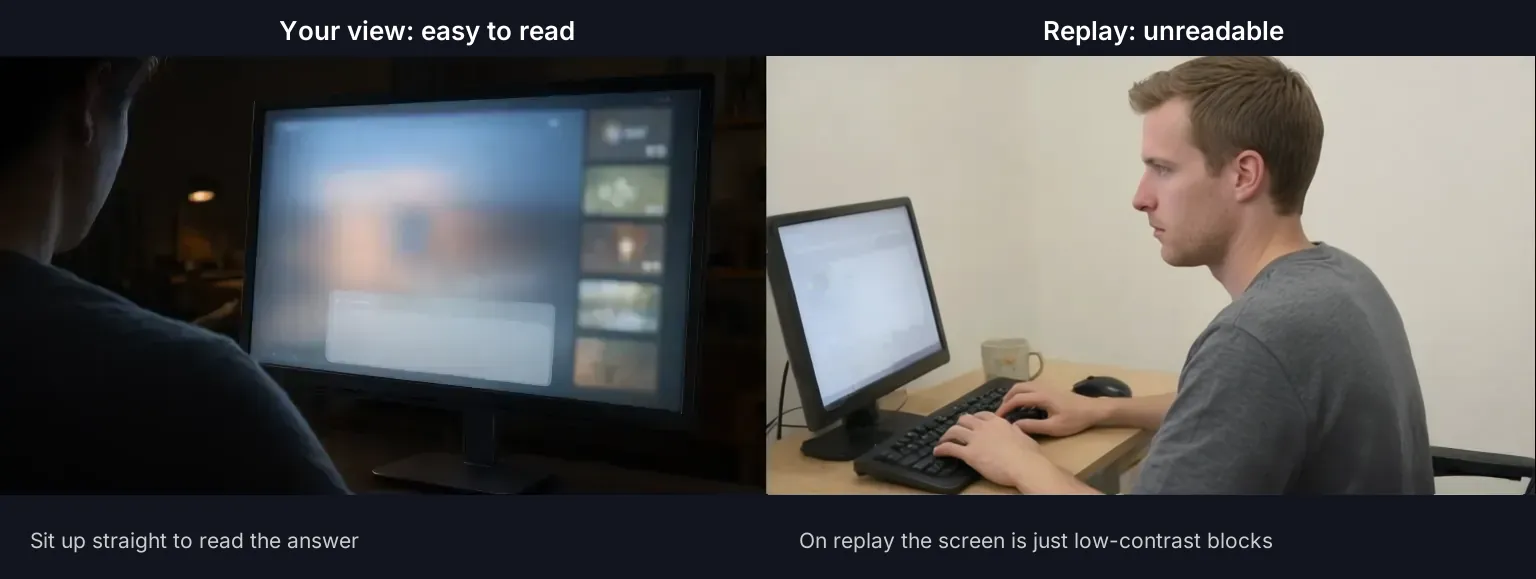
Autofocus and auto-exposure can sharpen faint text. Always check the recorded clip, not the live preview.
Option A · one computer: fusion mode plus text opacity
The answer stays on your screen, tuned to the point where you can read it and the camera can't. Fusion mode hides the window edges and lets you set text opacity on its own.
- Press Ctrl+Shift+Space to open the overlay and choose Blend as the visual mode in its toolbar, or pick Fusion mode under Settings → General → Visual mode.
- In Settings → General, lower Fusion mode text opacity from the default 88%, 5% at a time. Record a replay after each step until the text is unreadable on it.
- Use the eye button in the toolbar (or Ctrl+Shift+, / Ctrl+Shift+.) to fade the backing so the window blends into the call. Keep it narrow, just below the webcam or at the screen edge, clear of the interview itself.
- Read one full answer yourself. If you can't, go back up 5%. Better a little effort for you than a readable replay.
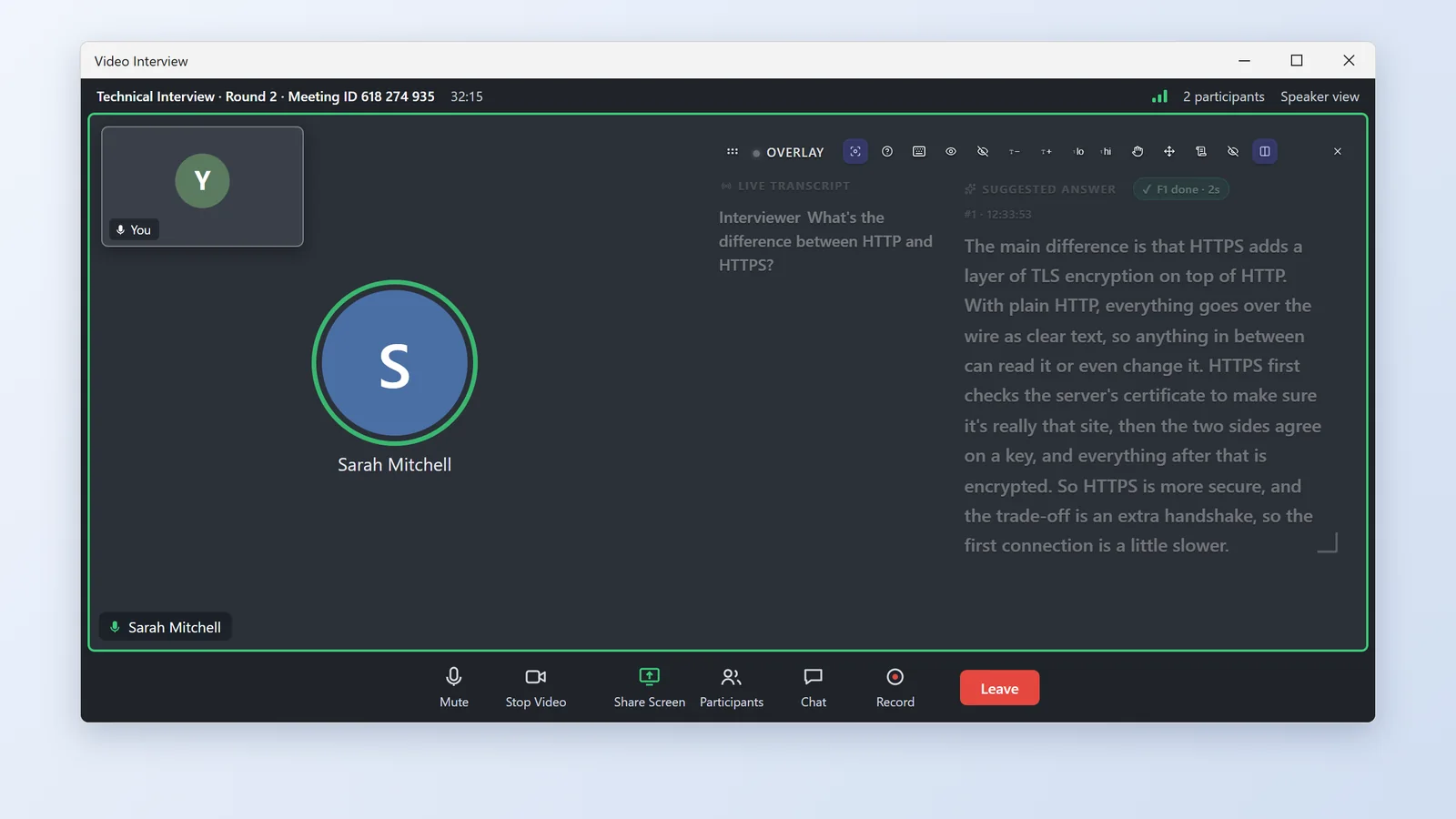
10% is the floor. If the replay is still readable at 10%, stop lowering it. If a smaller window and a new angle don't fix it, Option B is the only reliable answer.
Fusion mode toolbar and hide key
In fusion mode the toolbar hides after 4 seconds of no use; right-click to bring it back. The close button always stays. Ctrl+` hides the overlay instantly and brings it back with the same content and position. F6 / F7 enter move / scroll mode; use the arrow keys and press Esc to exit.
Option B · phone or tablet: answers only on a second screen (most reliable)
The computer keeps listening and writing answers; the phone or tablet is just a display. The answers aren't on the filmed screen at all, so there's no opacity threshold to hold.
- On the main screen, expand View answers on phone in the audio devices area. A QR code appears. It uses a secure cloud connection, so your phone doesn't need the same Wi-Fi.
- Scan it with your phone's camera or browser. The computer then shows Phone connected. Ask a test question to confirm it syncs.
- In an online test, connecting the phone closes the overlay on the computer completely and the phone tells you so; press Ctrl+` to see it on the computer. In an interview the overlay stays as the main answer window; press Ctrl+` to hide it.
- Put the phone or tablet outside the second camera's view: behind or beside you, below the desk, behind the monitor, or on a shelf 1–2 m away. Too small to read? Tap A+ on the phone or use a tablet.
- During the interview, Alt+1 / Alt+2 scroll the phone up and down and Alt+3 / Alt+4 scroll code blocks sideways, so your hands stay on the keyboard.
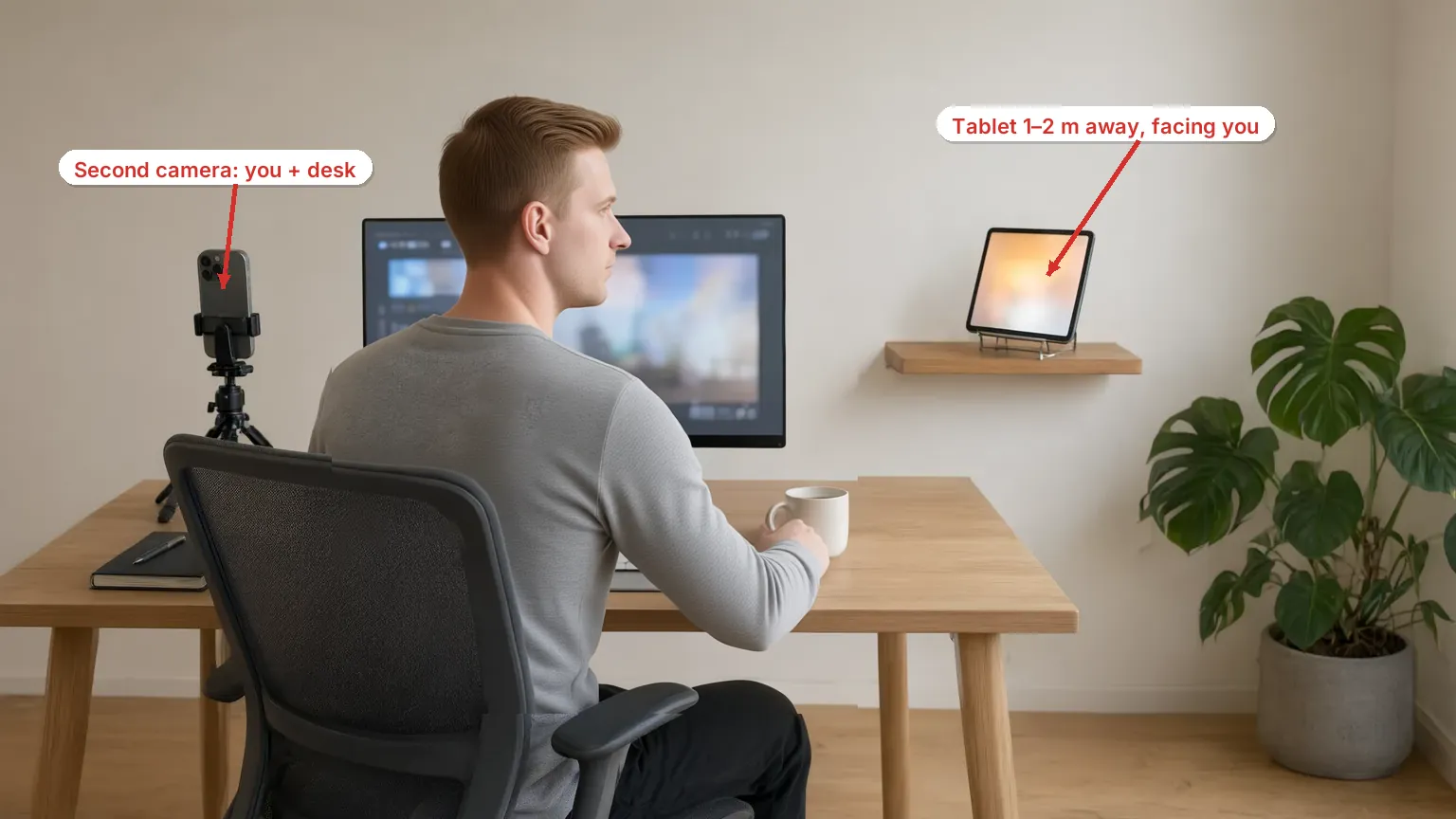
Viewing on your phone doesn't affect stealth on the computer. But if the phone itself is casting, recording or sharing its screen, the other side will see the answers. Use that screen only for yourself.
Dropped connection? When the phone wakes or returns to the page it reconnects and fills in the latest transcript and answers. A session lasts 6 hours; in a very long interview, scan again if it drops.
Cloud connection fails, and what you can adjust on the phone
If the cloud connection fails, click Local network backup, put the phone and computer on the same Wi-Fi, and scan each network card's code until one connects. On the phone you can change text size with A− / A+, go full screen, switch between the transcript and AI answers, and scroll or wrap code blocks. The keys that control the phone are under Settings → Shortcuts → Phone view control; if the phone doesn't respond within 3 seconds you'll see "The phone took too long to respond".
Keys for this setup
- Ctrl+` hides or brings back CalmRound: the overlay during an interview, or the main window when no overlay is open.
- Alt+1 / Alt+2 scroll the phone up / down, for long answers.
- Alt+3 / Alt+4 scroll the phone left / right, for code blocks.
Online tests: listen with headphones, keep the screen clean
A test with a second camera doesn't need a second screen: you hear the answers, and the computer shows only the test page.
- Choose Online test, turn on Read test answers aloud automatically and click Preview to check your headphones. Set the volume so you hear it clearly and the second camera doesn't pick up leakage.
- Click Start online test. After the pre-check the main window tucks away and the test browser stays in front. Press Ctrl+` to hide or bring back the overlay.
- When a question appears, press F5 (or F4 for coding). For multi-page questions press Alt+S on each page, then F5 to send them together. You hear the question number, a short prompt and the answer; code and explanations aren't read out in full.
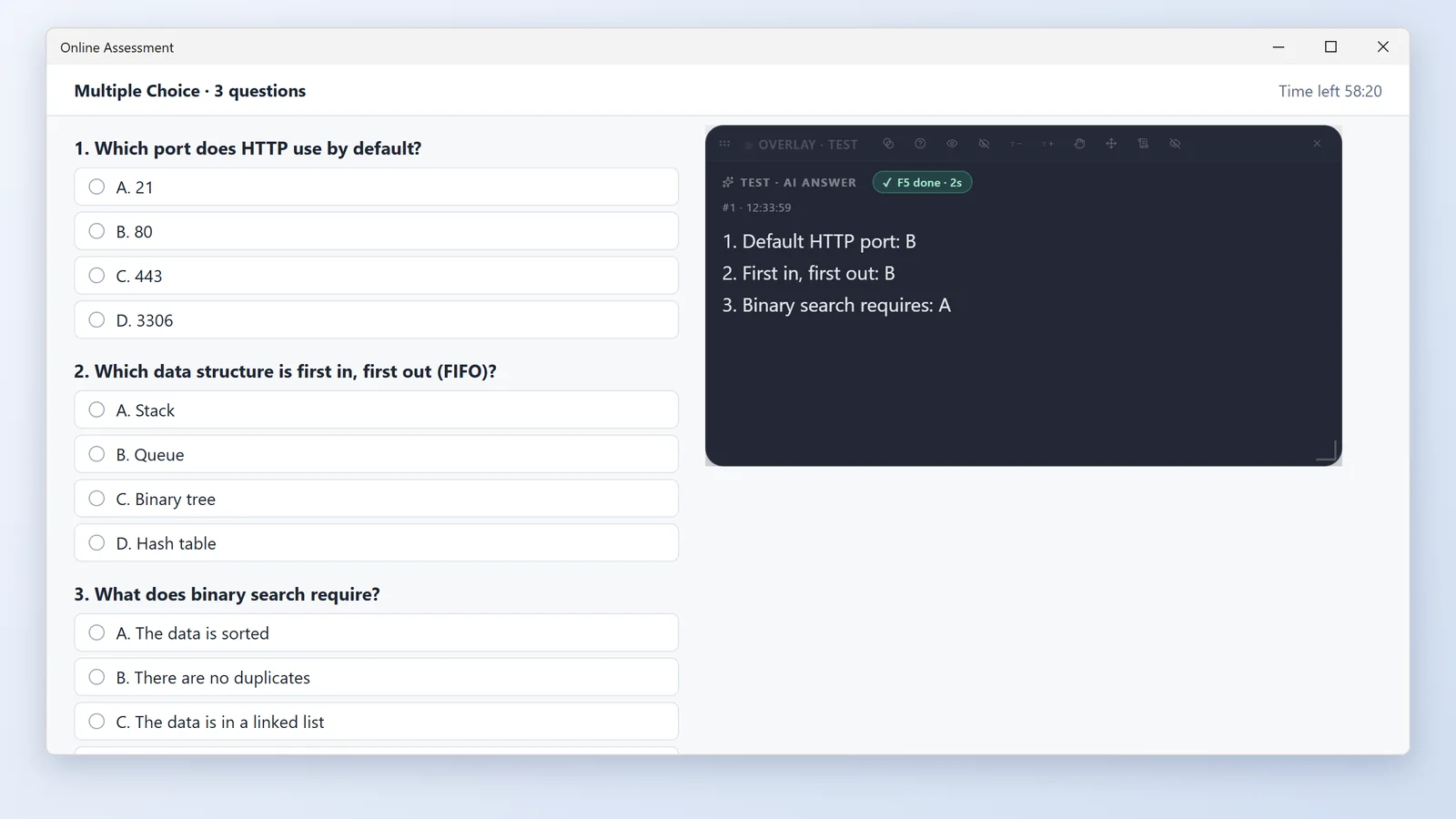
Hidden isn't a guarantee. Hiding the main window and listening on headphones don't replace the test platform's own proctoring rules. Rehearse once with your real second camera, device permissions and platform. See the guide's second-camera section for the short version.
Which setup should you choose?
| Your situation | Choose | Why |
|---|---|---|
| One computer, answers must stay on screen | Option A | Fusion mode with low text opacity is the only way that needs no second screen. |
| You have a phone, tablet or extra screen | Option B | The answers are physically elsewhere, so there's no threshold to hold. Most reliable. |
| The second camera is close to the screen or very sharp | Option B | A good lens up close can read even 10% text; Option A's threshold is too hard to hold. |
| You must share your screen the whole time | Stealth + either option | Stealth already protects the shared screen by default. The physical camera is separate: still use Option A or B. |
| Online test | Headphones | See Online tests: hearing answers suits tests better than reading them. |
You don't need both at once. Pick one and finish the 10-second test recording; running both only adds screens to watch.
Look up what you're seeing
Type a symptom or key, such as "opacity", "overlay" or "Alt+1". Still stuck? Go to Settings → About & updates and click Send diagnostics to support.
The second camera can still read the text at 10%
10% is the lowest text opacity. Make the overlay smaller, move it to the screen edge, lower the screen brightness and record again. Still readable? Switch to Option B and put the answers on a phone or tablet outside the camera's view.
The overlay disappeared after my phone connected
In an online test that's expected: once the phone connects, the overlay on the computer closes and answers move to the phone. Press Ctrl+` to see them on the computer for a moment (the phone keeps syncing); when the phone disconnects, the overlay comes back. In an interview the overlay doesn't close by itself; press Ctrl+` to hide it.
How do I hide and bring back the main window?
One key, Ctrl+`: with the overlay open it hides and brings back the overlay; with no overlay open it hides and brings back the main window. If you changed the key, go by what Settings → Shortcuts shows.
Nothing happens when I scan the code
Try another browser and scan again. Still nothing? Click Local network backup, put the phone and computer on the same Wi-Fi, and scan each network card's code. If the computer stays on Setting up a secure connection, wait a few seconds or collapse and expand the row again.
The phone shows the transcript but no answers
Switch to the AI answers tab on the phone. Answers are generated and synced only after you press F1 (or auto-answer kicks in).
The phone doesn't move when I press Alt+1
Check that the computer shows Phone connected and that the keys under Settings → Shortcuts → Phone view control are what you're pressing. If the phone doesn't respond within 3 seconds you'll see "The phone took too long to respond"; check that it isn't locked or offline.
The second camera must see my screen
Use Option A: shrink the overlay into a corner and lower its text opacity so the filmed part of the screen shows only low-contrast content. If the replay is still readable, the only fix is moving the answers to a second screen outside the view (Option B). If the platform asks for screen sharing rather than a camera, stealth already protects the shared screen by default.
Nothing matches. Try another word, or send diagnostics to support.